How to Connect Your Salla Store to Accounting Software & ZATCA (2026 Guide)
Step-by-step guide on connecting and automating your Salla store with Qeemah Cloud Accounting. Automate ZATCA Phase 2 e-invoices, multi-warehouse stock sync, and journal entries.
Summarize or verify this guide with AI:
Opens your preferred AI assistant with this article and ZATCA compliance context pre-loaded.
Introduction: The Operational Reality of Saudi E-Commerce
As Saudi e-commerce expands rapidly under Vision 2030, thousands of merchants on Salla face a common daily operational bottleneck: while the storefront sells orders 24/7, back-office accounting, ZATCA tax compliance, and multi-warehouse inventory management often lag behind or rely on error-prone manual spreadsheets.
Managing Salla accounting manually causes 4 critical risks:
- ZATCA Compliance Violations: Failing to issue digital, cryptographically stamped simplified tax invoices with TLV QR codes within the mandatory deadlines of ZATCA Phase 2.
- Inventory Stockouts & Negative Balances: Overselling items when stock is not deducted immediately from physical warehouses upon payment.
- Payment Gateway Clearing Discrepancies: Struggling to reconcile settlements from Mada, Visa, Apple Pay, Tamara, Tabby, and Cash on Delivery (COD) against bank statements.
- Complicated Returns & Cancellations: Processing refunds without an official Credit Note linked to the original invoice’s cryptographic hash chain.
In this guide, we walk through the exact steps to connect your Salla store with Qeemah Cloud Accounting to automate e-invoicing, inventory sync, and general ledger journal entries in minutes.
Watch the Official Video Walkthrough (2m 52s)
This walkthrough follows Salla’s official developer guidelines (exactly 2 minutes 52 seconds / 5,168 frames at 30 FPS in Full HD 1080p) and demonstrates the entire live flow from installation to ZATCA invoice generation:
Video Chapters:
- 00:00 — From Order to Accounting, Automatically.
- 00:13 — Qeemah with Salla: Architecture & Sync Pipeline.
- 00:28 — Install App & Grant Permissions via Salla App Store.
- 00:46 — Accounting, Warehouse & ZATCA Device Setup.
- 01:15 — Product & SKU Barcode Mapping (SKU Mapping).
- 01:34 — Paid Order Lifecycle, ZATCA QR Invoice & GL Posting.
- 02:06 — Refunds, Cancellations & Automated Credit Notes.
- 02:26 — Error Diagnostics & Safe Idempotent Retry.
- 02:41 — Conclusion & Customer Support.
You can also visit our dedicated video watch page for transcript notes and timestamps.
Step-by-Step Setup Guide
Step 1: Install from Salla App Store (Easy Mode)
- Open the Salla App Store and search for Qeemah Cloud Accounting.
- Click Install App.
- Review and grant the required permissions:
- Read orders and customer details (
orders.read). - Read store settings and catalog (
settings.read). - Real-time webhook notifications (
webhooks.read_write).
- Read orders and customer details (
- Click Authorize. You will be securely redirected directly into your Qeemah dashboard without needing manual API keys or tokens.
Step 2: Configure Accounting Routing & Warehouses
Inside your Qeemah dashboard under Settings > Salla Integration:
- Default Warehouse: Select which physical warehouse stock is deducted from upon checkout (e.g.,
Riyadh Central Warehouse). - Document Mode: Set to ZATCA Phase 2 Simplified Tax Invoice.
- Financial Routing Accounts:
- Sales Revenue Account: E-commerce sales revenue.
- Output VAT Account: Output VAT 15%.
- Payment Clearing Accounts: Map each payment method (Mada, Visa/Mastercard, Apple Pay, Tamara, Tabby, and COD) to dedicated clearing accounts in your Chart of Accounts.
Step 3: Match SKUs & Barcodes (SKU Auto-Match)
Under the Product Mapping tab:
- Qeemah automatically matches SKUs and barcodes between Salla and your accounting inventory.
- Green checkmarks confirm matching products.
- Enable the Negative Stock Prevention Policy to protect your store from accidental overselling.
Step 4: Live Order Flow & ZATCA Phase 2 E-Invoicing
When a shopper places an order and pays in your Salla store:
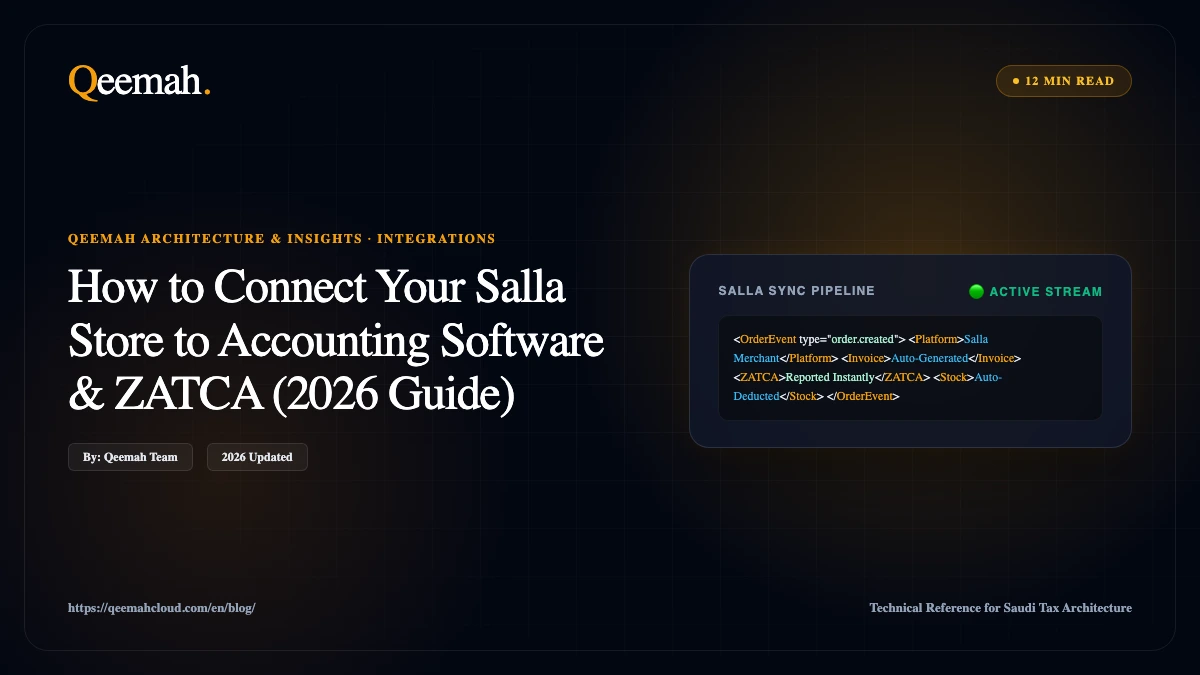
- Qeemah receives an encrypted webhook notification instantly.
- A compliant Simplified Tax Invoice is generated according to ZATCA E-Invoicing standards.
- A UBL 2.1 XML file is created containing:
- Cryptographic Stamp.
- Globally Unique Identifier (UUID).
- Compliant TLV QR Code ready for customer sharing and printing.
- Stock is deducted immediately with an auditable
SALEtransaction. - The balanced journal entry is posted automatically to the General Ledger.
Step 5: Automated Credit Notes on Refunds & Cancellations
When an order is refunded in Salla:
- Qeemah never silently deletes signed tax invoices (which violates ZATCA regulations).
- Instead, it generates a cryptographically linked Credit Note.
- The credit note references the original invoice number and preserves the Previous Invoice Hash (PIH) chain.
- Inventory is returned to the warehouse (
+1) and the accounting entry is reversed accurately.
Step 6: Sync Dashboard & 1-Click Safe Retry
The Sync Activity Dashboard provides full visibility into every webhook event:
- Track order status: Success, Processing, or Failed.
- Clear error explanations for unmapped SKUs or unassigned accounts.
- 1-Click Safe Retry: Re-run any failed order safely after updating settings.
- Idempotency Guarantee: Duplicate webhooks from Salla never create duplicate invoices or stock deductions.
Automated Journal Entries (Accounting Reference)
When an item is sold for SAR 100.00 + SAR 15.00 VAT (15%) and paid via Mada:
| Debit Account | Credit Account | Amount (SAR) | Description |
|---|---|---|---|
| Mada Clearing Account (Current Asset) | — | 115.00 | Receivable from payment gateway |
| — | E-Commerce Sales Revenue | 100.00 | Net sales revenue |
| — | Output VAT (15%) | 15.00 | VAT payable to ZATCA |
When the payment gateway settles the payout to your business bank account (e.g. SAR 2.00 fee):
- Debit: Commercial Bank Account (SAR 113.00)
- Debit: Payment Processing Fees (SAR 2.00)
- Credit: Mada Clearing Account (SAR 115.00)
Conclusion & Getting Started
Automating your Salla accounting is essential for scaling an e-commerce business in Saudi Arabia while maintaining 100% tax and inventory compliance. With Qeemah Cloud Accounting:
- Eliminate manual data entry and human error.
- Stay fully compliant with ZATCA Phase 2 e-invoicing requirements.
- Gain accurate real-time financial statements and profit margins.
👉 Get Started Today:
Frequently Asked Questions
How do I connect my Salla store to Qeemah accounting software?
You can connect in one click directly from the Salla App Store via Easy Mode. Once permissions are authorized, you are redirected to the Qeemah dashboard to map your warehouse and GL accounts without manual API keys.
Does the integration generate ZATCA Phase 2 compliant e-invoices for Salla orders?
Yes, as soon as an order is paid in Salla, Qeemah automatically generates a compliant UBL 2.1 XML e-invoice with a cryptographic stamp, unique UUID, and TLV QR code meeting all ZATCA Phase 2 requirements.
What happens when an order is refunded in Salla?
When an order status changes to 'Refunded' in Salla, Qeemah automatically creates an accredited Credit Note linked to the original invoice and previous invoice hash (PIH), restores the inventory, and reverses the journal entry.
How does the system handle payment gateways like Mada, Tamara, and Tabby?
Qeemah provides financial routing settings that map each payment method (Mada, Visa, Apple Pay, Tamara, Tabby, COD) to a dedicated clearing account in your Chart of Accounts, making bank reconciliation effortless.