ZATCA Sandbox vs Production: Avoid Integration Rejection
Your Sandbox CSID won't work in Production. Learn the 3 ZATCA environments, CSR generation steps, and how to pass Fatoora compliance checks on the first attempt.
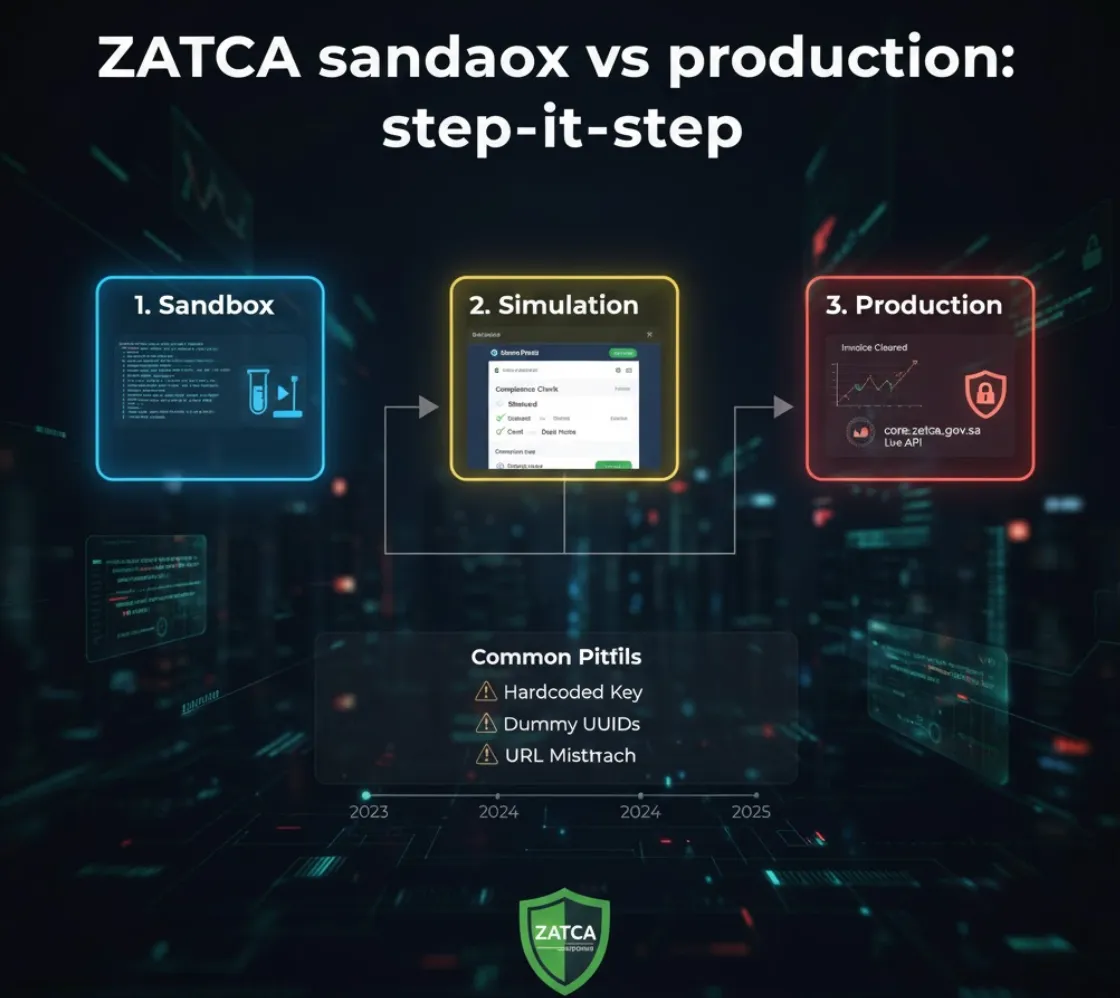
A common myth: “If it works in the Sandbox, I can just switch the URL to Production and I’m done.”
This is the fastest way to get your integration rejected.
ZATCA has three distinct environments. Mixing them up leads to invalid signatures, blocked CSIDs, and compliance failures. This guide explains exactly how to move from “Hello World” to “Live Invoice”.
The 3 Environments
1. Developer Sandbox
- URL:
sandbox.zatca.gov.sa - Purpose: Playground.
- Risk: Zero.
- What you do here: Test your code logic, XML structure, and API connectivity.
- Key Detail: The CSID (Certificate) you get here is fake. It will never work on a real invoice.
2. Simulation (Fatoora Portal)
- URL:
fatoora.zatca.gov.sa(Simulation Mode) - Purpose: Pre-Production / User Acceptance Testing (UAT).
- Risk: Low (but monitored).
- What you do here: Simulate a real onboarding process. You log in with real company credentials but flag the CSID as “Simulation”. See our complete Fatoora Saudi onboarding guide for step-by-step instructions.
- Mandatory? Yes. ZATCA often requires you to pass checks here before Production.
3. Production (Live)
- URL:
core.zatca.gov.sa(API Endpoint) - Purpose: Real tax reporting.
- Risk: High. Every invoice sent here is a legal tax document.
- What you do here: Issue real invoices to customers.
Step-by-Step: From Code to Live
Step 1: The “Fake” Onboarding (Sandbox)
- Goal: Verify your XML generation code.
- Action:
- Go to the Developer Portal.
- Request a temporary OTP.
- Run your script to get a
BinarySecurityToken. - Send a test invoice.
- Success: You get a
REPORTEDorCLEAREDstatus.
Step 2: The Compliance Check (The “CSID” Phase)
Before you can send any invoice, your software (EGS) must prove it works.
- Action:
- Generate a CSR (Certificate Signing Request) on your server.
- Call the
complianceendpoint. - ZATCA asks you to send 3 specific documents:
- Standard Invoice
- Credit Note
- Debit Note
- Crucial: These must pass perfectly.
Step 3: Production Onboarding
Once compliance is passed, you request the Production CSID (PCSID).
- Action:
- Login to Fatoora Portal with the CEO/Owner’s credentials.
- Navigate to “Onboard New Solution”.
- Generate a Production OTP.
- Use this OTP in your software within 60 minutes.
- Your software receives the “Golden Key” (PCSID).
Warning: Store this key securely. If you lose it, you cannot recover it. You must revoke it and start over.
Common Pitfalls
1. Hardcoding the Public Key
Developers often hardcode the Sandbox Public Key in their verification logic. When they switch to Prod, the signature verification fails because the Production Certificate is different.
2. The “00000” UUID Trick
In Sandbox, you might use dummy UUIDs. In Production, BR-KSA-03 is enforced strictly. Every document needs a Version 4 UUID.
3. Forgetting to Switch URLs
Sending a Production Invoice (signed with a Prod Key) to the Sandbox API will return 401 Unauthorized or Invalid Signature. The Environment, Key, and URL must all match.
Checklist: Are you ready for Production?
- My CSR includes the correct Production VAT Number (starts with 3, ends with 3).
- I have passed the 3-document compliance check.
- I have a secure vault/database to store the Production Private Key (never in code!).
- I have a mechanism to renew the CSID (it expires!).
Skip the headache
Managing three environments and rotating keys is complex DevOps work.
Qeemah manages this lifecycle for you. We provide a single API. You send us the invoice, and we route it to the correct ZATCA environment based on your configuration.